
To access the Portal at any time, simply click the Customer Service Portal link at the top of this page (or click here).
What the Customer Service Portal Is Used For
After closing, the Portal provides a clear and organized way to manage all customer service needs, including:
-
Submitting new service requests
-
Adding photos, videos, or detailed notes
-
Tracking the status of open items
-
Receiving updates and communication from the Customer Care Team
-
Reviewing your full history of requests over time
Walkthrough Items Automatically Added
Following your walkthrough, any items identified during that appointment will be automatically added to your portal as individual service tickets.
You will see them appear shortly after the walkthrough—no need to enter them yourself. This ensures everything is documented and ready for follow-up.
When You Receive Access
Access to the Portal is activated after your closing and managed by our sales team.
Before Closing
You will not have access to the Customer Service Portal.
Any questions before closing should be directed to your sales team.
After Closing
Once your closing is processed, your account will unlock access to:
-
The Customer Service Portal
-
Warranty information
-
Full home maintenance and care resources within the Knowledge Base
If your closing occurs late in the day, on a Friday, or over a holiday, access may activate the next business day.
How to Access the Customer Service Portal
You will log in using the same account you created when you first accessed the Knowledge Base. To open the Portal, click the Customer Service Portal link at the top of the page, which will direct you to the login screen.
Step 1: Register (If You Haven’t Already)
If you previously registered for the Knowledge Base, you do not need to register again.
If you have not yet registered:
-
Visit the login page.
-
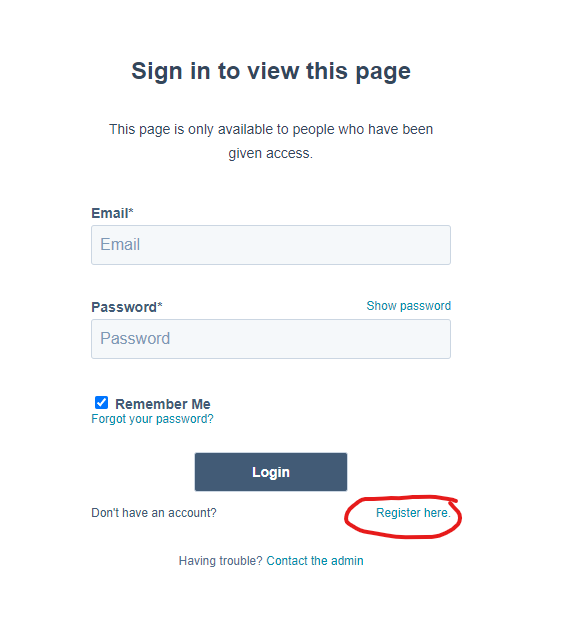
Click Register Here beneath the Login button.
-
Enter the same email address we have on file for you.
-
Create your password when prompted.
If you use a different email address than the one on file, you may not see the correct permissions.
Step 2: Log In
Once registered:
-
Return to the login screen.
-
Enter your email and password.
-
Click Login.
If your closing has been processed, you will now see the Customer Service Portal available in your menu.
If You See an Access Error
A “no access” or “permission denied” message typically means one of the following:
-
Your closing has not yet been fully processed
-
Your account permissions still need to be updated
-
You registered with an email address different from the one on file
Please contact us—we can update your access quickly.
Your Post-Closing Support Center
The Customer Service Portal ensures clear communication, documented follow-up, and timely resolution of any items requiring attention after move-in. We encourage you to use the Portal for all service needs so our team can support you as efficiently as possible.